
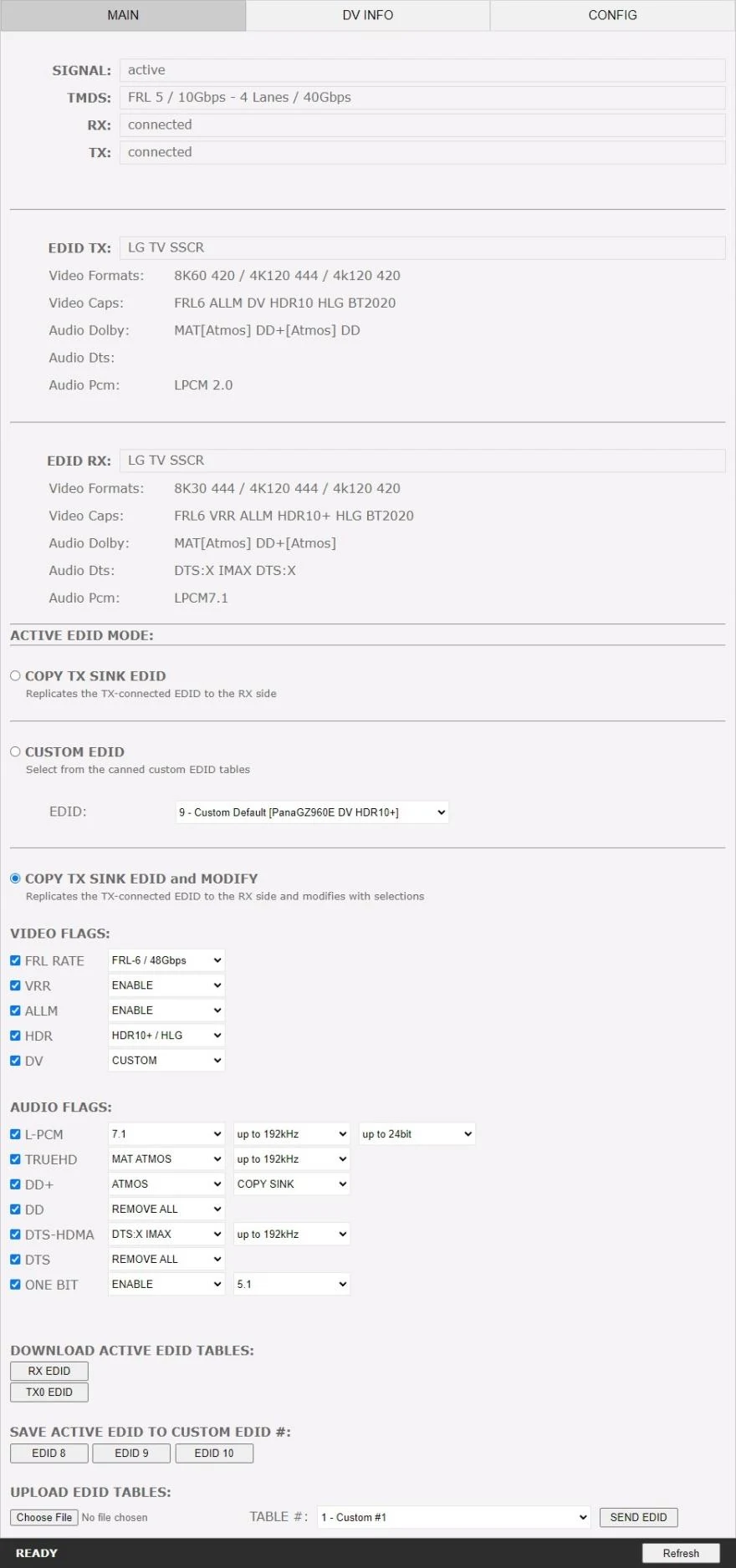
Live link status
- SIGNAL — reports active when the source is on and video is passing through.
- TMDS — TMDS and FRL rate, number of lanes and per-lane bandwidth in Gbps, when a signal is active.
- RX — reports connected when a source is present at the input.
- TX — reports connected when a sink is present at the output.
EDID TX: what the sink advertises
The EDID TX block reports the sink EDID name of the device connected at the output, plus its video formats (maximum supported signals), video caps (supported signal modes), and its Dolby, DTS and PCM audio support.
EDID RX: what the source is told
The EDID RX block reports the same six fields, but for the EDID that the source connected at the input will actually read. Comparing the two blocks is the fastest way to see what the DR HDMI 8K is changing.
Active EDID mode
Three modes decide where the RX EDID comes from.
COPY TX SINK
Use the EDID from the device connected at the TX output, unchanged.
CUSTOM EDID
Define an individual EDID for the input from a list of 10 custom and 90 predefined tables. The full list is in the EDID tables chapter.
COPY TX SINK EDID and MODIFY
Take the connected sink EDID and change selected capabilities before presenting it to the source. This is the automix workflow, and it is where the video and audio flags apply.
Video flags
- FRL RATE — disable, or set the maximum FRL rate to apply (FRL1, 2, 3, 4 or 5).
- VRR — enable or disable VRR support.
- ALLM — enable or disable ALLM support.
- HDR — remove, or set the HDR mode: HDR10, HDR10/HLG, HDR10+ or HDR10+/HLG.
- DV — remove, or set a preloaded or custom Dolby Vision mode. See the DV section chapter.
Audio flags
- L-PCM — set the preferred L-PCM mode, sample rate and bit width.
- TRUE HD — disable, or set the preferred TrueHD mode and sample rate.
- DD+ — disable, or set the DD+ mode and sample rate.
- DD — disable, or set the DD mode.
- DTS-HDMA — disable, or set the DTS-HD MA mode and sample rate.
- DTS — disable, or set the DTS mode.
- ONE BIT — disable, or set the one-bit mode and sample rate.
EDID file handling
- DOWNLOAD ACTIVE EDID TABLES — download the EDID from the input or the output.
- SAVE ACTIVE EDID TO CUSTOM EDID # — one click to store the current EDID in custom slot 8, 9 or 10.
- UPLOAD EDID TABLES — select an EDID file and a custom table number, then click SEND EDID.
- REFRESH — reload the current page.
Need the hardware?
Open the DR HDMI 8K product page on HDfury.uk.