
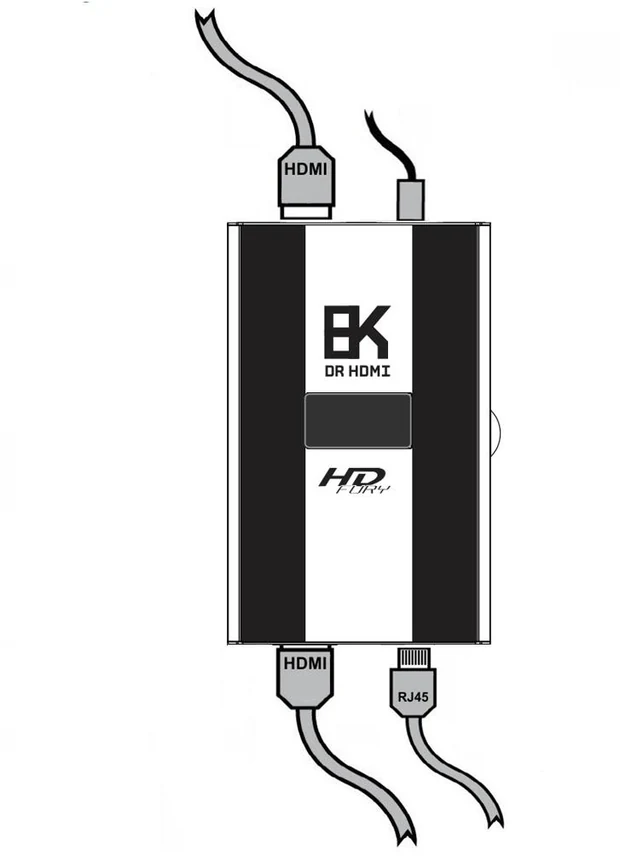
The connections
- Connect the USB-C power connector from the power supply. The supply is rated 110–240V 1.2A in, 5V 2A out.
- Connect a source to the HDMI input.
- Connect the HDMI output to the display, projector or AV receiver.
- Optionally connect an Ethernet cable to the RJ45 port. This is required for the embedded web server and for IP control.
Cable requirement
For a 1500MHz / 48Gbps link, use a certified or tested 1500MHz HDMI 8K cable in copper or fibre. If any device in the chain runs at that bandwidth, every HDMI cable in the path has to support it — the DR HDMI 8K can equalise and repeat a signal, but it cannot make a cable carry more than the cable is capable of.
Important: if a lower-bandwidth mode works and a higher one does not, treat the cable and the rest of the chain as suspects before assuming the problem is EDID. The long and fibre HDMI guide covers how to separate the two.
Power
The supplied 5V 2A supply is the recommended option. Powering the unit from a computer or TV USB port can work, but only if that port can actually deliver enough current — see the FAQ chapter for the details on USB power.
Source: this chapter follows the official DR HDMI 8K user manual (Rev 1.2). Where a setting or value matters exactly, check it against the complete PDF manual rather than an abbreviated web summary.